
In the first part of this series, I wrote on all the non-agw notebook widgets included with wxPython. For this second article, I will be focusing on the two notebooks that are in the AGW library of wxPython. AGW stands for Advanced Generic Widgets, a set of widgets that are written in Python instead of wrapped C++ code. I personally think that AGW is also a callback to its amazing author, Andrea Gavana. Regardless, the two widgets in this review will be the FlatNotebook and another AUI Notebook. The FlatNotebook has a great demo and I will spend most of this article on demos I’ve created that are based on it. The AUI Notebook is a part of agw.aui. While the demo for agw.aui is cool, it focuses on AUI in general, not the notebook. So I’ll just show you what I can glean from that. Now, let’s get cracking!
Update: The API changed slightly when it comes to AGW-related widgets. Basically some style flags in wxPython 2.8.11.0+ now require the agw-specific style flags. To use them, you’ll need to use the agwStyle keyword. See Andrea’s docs for more info: http://xoomer.virgilio.it/infinity77/AGW_Docs/ If you run into an error, try changing that first or post to the mailing list.
The Amazing FlatNotebook
The Flatbook control is written in Python rather than a wrapped widget from wxWidgets. It was added to wxPython with the release of wxPython 2.8.9.2 on February 16, 2009. Since then Andrea Gavana has been updating the agw library with lots of fixes. My examples will work with the 2.8.9.2+ versions of wxPython, but I recommend getting the SVN version of agw and replacing your default one with it as there have been a lot of bug fixes applied to the AUI module and several others. There is also an effort going on currently to better document this library in the code itself, so you may find that helpful too!
Here are a few of the FlatNotebook’s Features:
- 5 Different tab styles
- It’s a generic control (i.e. pure python) so it’s easy to modify
- You can use the mouse’s middle-click to close tabs
- A built-in function to add right-click pop-up menus on tabs
- A way to hide the “X” that closes the individual tabs
- Support for disabled tabs
- Plus lots more! See the source and the wxPython Demo for more information!
Now that we’ve done an unpaid commercial, let’s take a look at the actual product:
Listing 1
import panelOne, panelTwo, panelThree
import wx
import wx.lib.agw.flatnotebook as fnb

########################################################################
class FlatNotebookDemo(fnb.FlatNotebook):
    """
    Flatnotebook class
    """

    #----------------------------------------------------------------------
    def __init__(self, parent):
        """Constructor"""
        fnb.FlatNotebook.__init__(self, parent, wx.ID_ANY)

        pageOne = panelOne.TabPanel(self)
        pageTwo = panelTwo.TabPanel(self)
        pageThree = panelThree.TabPanel(self)

        self.AddPage(pageOne, "PageOne")
        self.AddPage(pageTwo, "PageTwo")
        self.AddPage(pageThree, "PageThree")

########################################################################
class DemoFrame(wx.Frame):
    """
    Frame that holds all other widgets
    """

    #----------------------------------------------------------------------
    def __init__(self):
        """Constructor"""
        wx.Frame.__init__(self, None, wx.ID_ANY,
                          "FlatNotebook Tutorial",
                          size=(600,400)
                          )
        panel = wx.Panel(self)

        notebook = FlatNotebookDemo(panel)
        sizer = wx.BoxSizer(wx.VERTICAL)
        sizer.Add(notebook, 1, wx.ALL|wx.EXPAND, 5)
        panel.SetSizer(sizer)
        self.Layout()

        self.Show()

#----------------------------------------------------------------------
if __name__ == "__main__":
    app = wx.PySimpleApp()
    frame = DemoFrame()
    app.MainLoop()
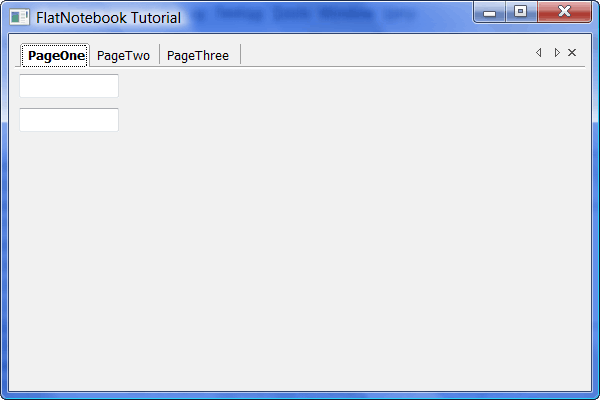
In Listing 1, I subclass FlatNotebook and use the generic panels from my previous article for the pages. You’ll notice that FlatNotebook has its own AddPage method that mimics the wx.Notebook. This should come as no surprise as the FlatNotebook’s API is such that you should be able to use it as a drop-in replacement for wx.Notebook. Of course, right out of the box, FlatNotebook has the advantage. If you run the demo above, you’ll see that FlatNotebook allows the user to rearrange the tabs, close the tabs and it includes some previous/next buttons in case you have more tabs than can fit on-screen at once.
Now let’s take a look at the various styles that we can apply to FlatNotebook:
Listing 2
import panelOne, panelTwo, panelThree
import wx
import wx.lib.agw.flatnotebook as fnb

########################################################################
class FlatNotebookDemo(fnb.FlatNotebook):
    """
    Flatnotebook class
    """

    #----------------------------------------------------------------------
    def __init__(self, parent):
        """Constructor"""
        fnb.FlatNotebook.__init__(self, parent, wx.ID_ANY)

        pageOne = panelOne.TabPanel(self)
        pageTwo = panelTwo.TabPanel(self)
        pageThree = panelThree.TabPanel(self)

        self.AddPage(pageOne, "PageOne")
        self.AddPage(pageTwo, "PageTwo")
        self.AddPage(pageThree, "PageThree")


########################################################################
class DemoFrame(wx.Frame):
    """
    Frame that holds all other widgets
    """

    #----------------------------------------------------------------------
    def __init__(self):
        """Constructor"""
        wx.Frame.__init__(self, None, wx.ID_ANY,
                          "FlatNotebook Tutorial with Style",
                          size=(600,400)
                          )
        self.styleDict = {"Default":self.OnDefaultStyle,
                          "VC71":self.OnVC71Style,
                          "VC8":self.OnVC8Style,
                          "Fancy":self.OnFancyStyle,
                          "Firefox 2":self.OnFF2Style}
        choices = self.styleDict.keys()

        panel = wx.Panel(self)
        self.notebook = FlatNotebookDemo(panel)
        self.styleCbo = wx.ComboBox(panel, wx.ID_ANY, "Default",
                                    wx.DefaultPosition, wx.DefaultSize,
                                    choices=choices, style=wx.CB_DROPDOWN)
        styleBtn = wx.Button(panel, wx.ID_ANY, "Change Style")
        styleBtn.Bind(wx.EVT_BUTTON, self.onStyle)

        # create some sizers
        sizer = wx.BoxSizer(wx.VERTICAL)
        hSizer = wx.BoxSizer(wx.HORIZONTAL)

        # add the widgets to the sizers
        sizer.Add(self.notebook, 1, wx.ALL|wx.EXPAND, 5)
        hSizer.Add(self.styleCbo, 0, wx.ALL|wx.CENTER, 5)
        hSizer.Add(styleBtn, 0, wx.ALL, 5)
        sizer.Add(wx.StaticLine(panel), 0, wx.ALL|wx.EXPAND, 5)
        sizer.Add(hSizer, 0, wx.ALL, 5)

        panel.SetSizer(sizer)
        self.Layout()

        self.Show()

    #----------------------------------------------------------------------
    def onStyle(self, event):
        """
        Changes the style of the tabs
        """
        print "in onStyle"
        style = self.styleCbo.GetValue()
        print style
        self.styleDict[style]()

    # The following methods were taken from the wxPython
    # demo for the FlatNotebook
    def OnFF2Style(self):

        style = self.notebook.GetWindowStyleFlag()

        # remove old tabs style
        mirror = ~(fnb.FNB_VC71 | fnb.FNB_VC8 | fnb.FNB_FANCY_TABS | fnb.FNB_FF2)
        style &= mirror

        style |= fnb.FNB_FF2

        self.notebook.SetWindowStyleFlag(style)


    def OnVC71Style(self):

        style = self.notebook.GetWindowStyleFlag()

        # remove old tabs style
        mirror = ~(fnb.FNB_VC71 | fnb.FNB_VC8 | fnb.FNB_FANCY_TABS | fnb.FNB_FF2)
        style &= mirror

        style |= fnb.FNB_VC71

        self.notebook.SetWindowStyleFlag(style)


    def OnVC8Style(self):

        style = self.notebook.GetWindowStyleFlag()

        # remove old tabs style
        mirror = ~(fnb.FNB_VC71 | fnb.FNB_VC8 | fnb.FNB_FANCY_TABS | fnb.FNB_FF2)
        style &= mirror

        # set new style
        style |= fnb.FNB_VC8

        self.notebook.SetWindowStyleFlag(style)


    def OnDefaultStyle(self):

        style = self.notebook.GetWindowStyleFlag()

        # remove old tabs style
        mirror = ~(fnb.FNB_VC71 | fnb.FNB_VC8 | fnb.FNB_FANCY_TABS | fnb.FNB_FF2)
        style &= mirror

        self.notebook.SetWindowStyleFlag(style)


    def OnFancyStyle(self):

        style = self.notebook.GetWindowStyleFlag()

        # remove old tabs style
        mirror = ~(fnb.FNB_VC71 | fnb.FNB_VC8 | fnb.FNB_FANCY_TABS | fnb.FNB_FF2)
        style &= mirror

        style |= fnb.FNB_FANCY_TABS
        self.notebook.SetWindowStyleFlag(style)

#----------------------------------------------------------------------
if __name__ == "__main__":
    app = wx.PySimpleApp()
    frame = DemoFrame()
    app.MainLoop()
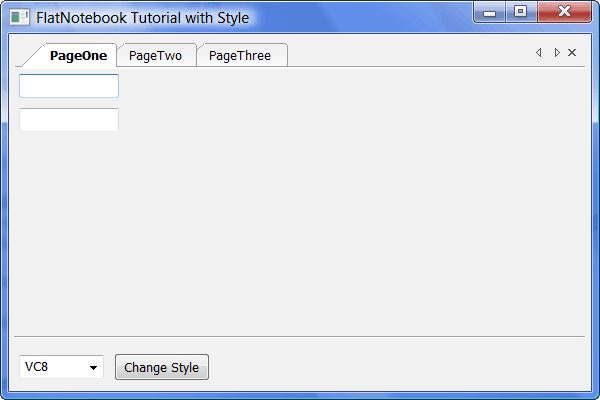
That’s a lot of code for a “simple” example, but I think it will help us understand how to apply tab styles to our widget. I borrowed most of the methods from the wxPython demo, in case you didn’t notice. The primary talking point in this code is the contents of those methods, which are mostly the same. Here’s the main snippet to take away from this section:
style = self.notebook.GetWindowStyleFlag()

# remove old tabs style
mirror = ~(fnb.FNB_VC71 | fnb.FNB_VC8 | fnb.FNB_FANCY_TABS | fnb.FNB_FF2)
style &= mirror
style |= fnb.FNB_FF2
self.notebook.SetWindowStyleFlag(style)
First, we need to get the current style of the FlatNotebook. Then we use some fancy magic in the “mirror” line that creates a set of styles that we want to remove. The line, “style &= mirror” actually does the removing and then we add the style we wanted with “style |= fnb.FNB_FF2”. Finally, we use SetWindowStyleFlag() to actually apply the style to the widget. You may be wondering what’s up with all those goofy symbols (i.e. |, ~, &). Well, those are known as bitwise operators. I don’t use them much myself, so I recommend reading the Python documentation for full details as I don’t fully understand them myself.
For my next demo, I created a way to add and delete pages from the FlatNotebook. Let’s see how:
Listing 3
import panelOne, panelTwo, panelThree
import random
import wx
import wx.lib.agw.flatnotebook as fnb

########################################################################
class FlatNotebookDemo(fnb.FlatNotebook):
    """
    Flatnotebook class
    """
    #----------------------------------------------------------------------
    def __init__(self, parent):
        """Constructor"""
        fnb.FlatNotebook.__init__(self, parent, wx.ID_ANY)

########################################################################
class DemoFrame(wx.Frame):
    """
    Frame that holds all other widgets
    """

    #----------------------------------------------------------------------
    def __init__(self, title="FlatNotebook Add/Remove Page Tutorial"):
        """Constructor"""
        wx.Frame.__init__(self, None, wx.ID_ANY,
                          title=title,
                          size=(600,400)
                          )
        self._newPageCounter = 0
        panel = wx.Panel(self)
        self.createRightClickMenu()

        # create some widgets
        self.notebook = FlatNotebookDemo(panel)
        addPageBtn = wx.Button(panel, label="Add Page")
        addPageBtn.Bind(wx.EVT_BUTTON, self.onAddPage)
        removePageBtn = wx.Button(panel, label="Remove Page")
        removePageBtn.Bind(wx.EVT_BUTTON, self.onDeletePage)
        self.notebook.SetRightClickMenu(self._rmenu)

        # create some sizers
        sizer = wx.BoxSizer(wx.VERTICAL)
        btnSizer = wx.BoxSizer(wx.HORIZONTAL)

        # layout the widgets
        sizer.Add(self.notebook, 1, wx.ALL|wx.EXPAND, 5)
        btnSizer.Add(addPageBtn, 0, wx.ALL, 5)
        btnSizer.Add(removePageBtn, 0, wx.ALL, 5)
        sizer.Add(btnSizer)
        panel.SetSizer(sizer)
        self.Layout()

        self.Show()

    #----------------------------------------------------------------------
    def createRightClickMenu(self):
        """
        Based on method from flatnotebook demo
        """
        self._rmenu = wx.Menu()
        item = wx.MenuItem(self._rmenu, wx.ID_ANY,
                           "Close Tab\tCtrl+F4",
                           "Close Tab")
        self.Bind(wx.EVT_MENU, self.onDeletePage, item)
        self._rmenu.AppendItem(item)

    #----------------------------------------------------------------------
    def onAddPage(self, event):
        """
        This method is based on the flatnotebook demo

        It adds a new page to the notebook
        """
        caption = "New Page Added #" + str(self._newPageCounter)
        self.Freeze()

        self.notebook.AddPage(self.createPage(caption), caption, True)
        self.Thaw()
        self._newPageCounter = self._newPageCounter + 1

    #----------------------------------------------------------------------
    def createPage(self, caption):
        """
        Creates a notebook page from one of three
        panels at random and returns the new page
        """
        panel_list = [panelOne, panelTwo, panelThree]
        obj = random.choice(panel_list)
        page = obj.TabPanel(self.notebook)
        return page

    #----------------------------------------------------------------------
    def onDeletePage(self, event):
        """
        This method is based on the flatnotebook demo

        It removes a page from the notebook
        """
        self.notebook.DeletePage(self.notebook.GetSelection())

#----------------------------------------------------------------------
if __name__ == "__main__":
    app = wx.PySimpleApp()
    frame = DemoFrame()
    app.MainLoop()
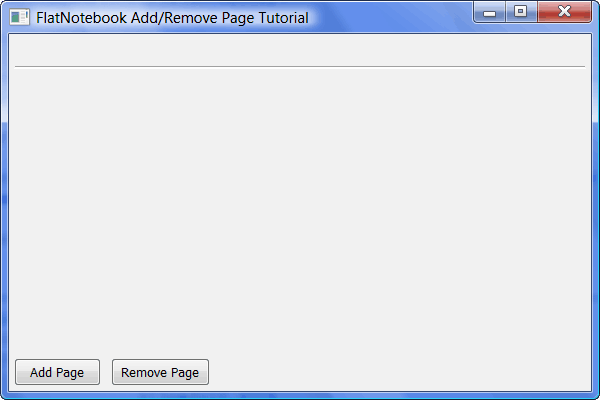
The code above allows the user to add as many pages as they want by clicking the Add Page button. The Remove Page button will remove whatever page is currently selected. When adding a page, but button handler freezes the frame and calls the notebook’s AddPage method. This calls the “createPage” method which randomly grabs one of my pre-defined panels, instantiates it and returns it to the AddPage method. On returning to the “onAddPage” method, the frame is thawed and the page counter is incremented.
The Remove Page button calls the notebook’s GetSelection() method to get the currently selected tab and then calls the notebook’s DeletePage() method to remove it from the notebook.
Another fun functionality that I enabled was the tab right-click menu, which gives us another way to close a tab, although you could use to do other actions as well. All you need to do to enable it is to call the notebook’s SetRightClickMenu() method and pass in a wx.Menu object.
There are tons of other features for you to explore as well. Be sure to check out the FlatNotebook demo in the official wxPython demo where you can learn to close tabs with the middle mouse button or via double-clicks, turn on gradient colors for the tab background, disable tabs, enable smart tabbing (which is kind of like the alt+tab menu in Windows), create drag-and-drop tabs between notebooks and much, much more!
AGW AUI Notebook
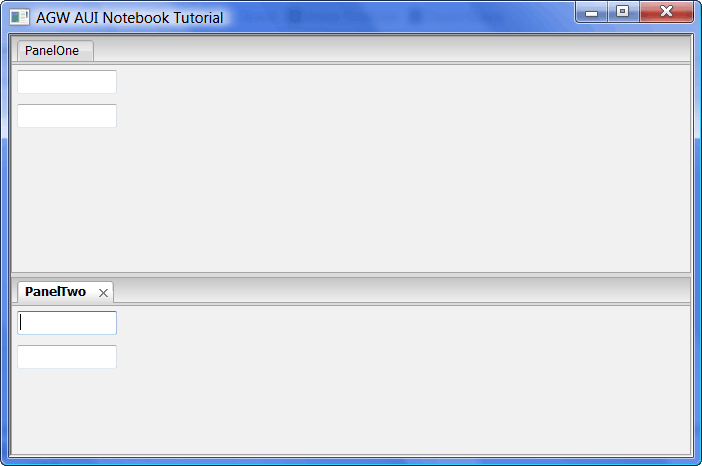
Andrea Gavana went to the trouble of creating a pure python version of the Advanced User Interface (AUI) that provides perspective saving, floating sub-windows that can be docked, customizable look and feel and the splittable AUI Notebook. His notebook will be the focus of this section. The AGW AUI Notebook has lots of features, but I’m just going to go over some of the basics. If you want to see all the features, be sure to read the code and check out the demo in the official wxPython Demo. As I mentioned at the beginning of this tutorial, be sure to download the latest version of AUI (or AGW as a whole) from SVN to get all the bug fixes.
Let’s take a look at the simple example I used for the screenshot above:
Listing 4
#----------------------------------------------------------------------
# agwAUINotebook.py
#
# Created: December 2009
#
# Author: Mike Driscoll - mike@pythonlibrary.org
#
# Note: Some code comes from the wxPython demo
#
#----------------------------------------------------------------------


import wx
import wx.lib.agw.aui as aui

########################################################################
class TabPanelOne(wx.Panel):
    """
    A simple wx.Panel class
    """
    #----------------------------------------------------------------------
    def __init__(self, parent):
        """"""
        wx.Panel.__init__(self, parent=parent, id=wx.ID_ANY)

        sizer = wx.BoxSizer(wx.VERTICAL)
        txtOne = wx.TextCtrl(self, wx.ID_ANY, "")
        txtTwo = wx.TextCtrl(self, wx.ID_ANY, "")

        sizer = wx.BoxSizer(wx.VERTICAL)
        sizer.Add(txtOne, 0, wx.ALL, 5)
        sizer.Add(txtTwo, 0, wx.ALL, 5)

        self.SetSizer(sizer)

########################################################################
class DemoFrame(wx.Frame):
    """
    wx.Frame class
    """

    #----------------------------------------------------------------------
    def __init__(self):
        wx.Frame.__init__(self, None, wx.ID_ANY,
                          "AGW AUI Notebook Tutorial",
                          size=(600,400))

        self._mgr = aui.AuiManager()

        # tell AuiManager to manage this frame
        self._mgr.SetManagedWindow(self)

        notebook = aui.AuiNotebook(self)
        panelOne = TabPanelOne(notebook)
        panelTwo = TabPanelOne(notebook)

        notebook.AddPage(panelOne, "PanelOne", False)
        notebook.AddPage(panelTwo, "PanelTwo", False)

        self._mgr.AddPane(notebook,
                          aui.AuiPaneInfo().Name("notebook_content").
                          CenterPane().PaneBorder(False))
        self._mgr.Update()
        #notebook.EnableTab(1, False)

 #----------------------------------------------------------------------
# Run the program
if __name__ == "__main__":
    app = wx.PySimpleApp()
    frame = DemoFrame()
    frame.Show()
    app.MainLoop()
The first difference between this notebook and the original AuiNotebook is that this one requires an AuiManager object. It may be that something similar is behind the original as well, but that’s hidden from us. Anyway, the first step is instantiating the AuiManager and then giving it the frame to manage via its SetManagedWindow() method. Now we can add the AUI Notebook. Note that we pass the frame as the parent of the notebook instead of the AuiManager. I think the reason is that when the AuiManager is given the frame, it becomes the top level window.
The next part of the equation should look familiar: AddPage(). Let’s see what it accepts:
AddPage(self, page, caption, select=False, bitmap=wx.NullBitmap, disabled_bitmap=wx.NullBitmap, control=None)
In my code, I only pass in the first three parameters, but you can also add a couple bitmaps and a wx.Window for the control. The next bit is a little tricky. We need to call the AuiManager’s AddPane() method to tell the AuiManager that we want it to “manage” something (in this case, the notebook). We also pass in a second argument which looks kind of confusing:
aui.AuiPaneInfo().Name("notebook_content").CenterPane().PaneBorder(False))
This parameter tells the AuiManager what to do with the notebook. In this case, we are telling it that the pane’s (i.e the notebook’s) name is “notebook_content”, which is what we use to look up the pane. We’re also telling the AuiManager that we want the pane to be in the centered dock position and the PaneBorder(False) command tells the AuiManager that we want a hidden border drawn around the notebook pane.
Our next example will be more complex and will show you how to change a few notebook settings.
Listing 5
import panelOne, panelTwo, panelThree
import wx
import wx.lib.agw.aui as aui

ID_NotebookArtGloss = 0
ID_NotebookArtSimple = 1
ID_NotebookArtVC71 = 2
ID_NotebookArtFF2 = 3
ID_NotebookArtVC8 = 4
ID_NotebookArtChrome = 5

########################################################################
class AUIManager(aui.AuiManager):
    """
    AUI Manager class
    """

    #----------------------------------------------------------------------
    def __init__(self, managed_window):
        """Constructor"""
        aui.AuiManager.__init__(self)
        self.SetManagedWindow(managed_window)

########################################################################
class AUINotebook(aui.AuiNotebook):
    """
    AUI Notebook class
    """

    #----------------------------------------------------------------------
    def __init__(self, parent):
        """Constructor"""
        aui.AuiNotebook.__init__(self, parent=parent)
        self.default_style = aui.AUI_NB_DEFAULT_STYLE | aui.AUI_NB_TAB_EXTERNAL_MOVE | wx.NO_BORDER
        self.SetWindowStyleFlag(self.default_style)

        # add some pages to the notebook
        pages = [panelOne, panelTwo, panelThree]

        x = 1
        for page in pages:
            label = "Tab #%i" % x
            tab = page.TabPanel(self)
            self.AddPage(tab, label, False)
            x += 1

########################################################################
class DemoFrame(wx.Frame):
    """
    wx.Frame class
    """
    #----------------------------------------------------------------------
    def __init__(self):
        """Constructor"""
        title = "AGW AUI Notebook Feature Tutorial"
        wx.Frame.__init__(self, None, wx.ID_ANY,
                          title=title, size=(600,400))
        self.themeDict = {"Glossy Theme (Default)":0,
                          "Simple Theme":1,
                          "VC71 Theme":2,
                          "Firefox 2 Theme":3,
                          "VC8 Theme":4,
                          "Chrome Theme":5,
                          }

        # create the AUI manager
        self.aui_mgr = AUIManager(self)

        # create the AUI Notebook
        self.notebook = AUINotebook(self)

        self._notebook_style = self.notebook.default_style

        # add notebook to AUI manager
        self.aui_mgr.AddPane(self.notebook,
                             aui.AuiPaneInfo().Name("notebook_content").
                             CenterPane().PaneBorder(False))
        self.aui_mgr.Update()

        # create menu and tool bars
        self.createMenu()
        self.createTB()

    #----------------------------------------------------------------------
    def createMenu(self):
        """
        Create the menu
        """
        def doBind(item, handler):
            """ Create menu events. """
            self.Bind(wx.EVT_MENU, handler, item)

        menubar = wx.MenuBar()

        fileMenu = wx.Menu()

        doBind( fileMenu.Append(wx.ID_ANY, "&Exit\tAlt+F4",
                                "Exit Program"),self.onExit)

        optionsMenu = wx.Menu()

        doBind( optionsMenu.Append(wx.ID_ANY,
                                   "Disable Current Tab"),
                self.onDisableTab)

        # add the menus to the menubar
        menubar.Append(fileMenu, "File")
        menubar.Append(optionsMenu, "Options")

        self.SetMenuBar(menubar)

    #----------------------------------------------------------------------
    def createTB(self):
        """
        Create the toolbar
        """
        TBFLAGS = ( wx.TB_HORIZONTAL
                    | wx.NO_BORDER
                    | wx.TB_FLAT )
        tb = self.CreateToolBar(TBFLAGS)
        keys = self.themeDict.keys()
        keys.sort()
        choices = keys
        cb = wx.ComboBox(tb, wx.ID_ANY, "Glossy Theme (Default)",
                         choices=choices,
                         size=wx.DefaultSize,
                         style=wx.CB_DROPDOWN)
        cb.Bind(wx.EVT_COMBOBOX, self.onChangeTheme)
        tb.AddControl(cb)
        tb.AddSeparator()

        self.closeChoices = ["No Close Button", "Close Button At Right",
                             "Close Button On All Tabs",
                             "Close Button On Active Tab"]
        cb = wx.ComboBox(tb, wx.ID_ANY,
                         self.closeChoices[3],
                         choices=self.closeChoices,
                         size=wx.DefaultSize,
                         style=wx.CB_DROPDOWN)
        cb.Bind(wx.EVT_COMBOBOX, self.onChangeTabClose)
        tb.AddControl(cb)

        tb.Realize()

    #----------------------------------------------------------------------
    def onChangeTabClose(self, event):
        """
        Change how the close button behaves on a tab

        Note: Based partially on the agw AUI demo
        """
        choice = event.GetString()
        self._notebook_style &= ~(aui.AUI_NB_CLOSE_BUTTON |
                                 aui.AUI_NB_CLOSE_ON_ACTIVE_TAB |
                                 aui.AUI_NB_CLOSE_ON_ALL_TABS)

        # note that this close button doesn't work for some reason
        if choice == "Close Button At Right":
            self._notebook_style ^= aui.AUI_NB_CLOSE_BUTTON
        elif choice == "Close Button On All Tabs":
            self._notebook_style ^= aui.AUI_NB_CLOSE_ON_ALL_TABS
        elif choice == "Close Button On Active Tab":
            self._notebook_style ^= aui.AUI_NB_CLOSE_ON_ACTIVE_TAB

        self.notebook.SetWindowStyleFlag(self._notebook_style)
        self.notebook.Refresh()
        self.notebook.Update()

    #----------------------------------------------------------------------
    def onChangeTheme(self, event):
        """
        Changes the notebook's theme

        Note: Based partially on the agw AUI demo
        """

        print event.GetString()
        evId = self.themeDict[event.GetString()]
        print evId

        all_panes = self.aui_mgr.GetAllPanes()

        for pane in all_panes:

            if isinstance(pane.window, aui.AuiNotebook):
                nb = pane.window

                if evId == ID_NotebookArtGloss:

                    nb.SetArtProvider(aui.AuiDefaultTabArt())
                    self._notebook_theme = 0

                elif evId == ID_NotebookArtSimple:
                    nb.SetArtProvider(aui.AuiSimpleTabArt())
                    self._notebook_theme = 1

                elif evId == ID_NotebookArtVC71:
                    nb.SetArtProvider(aui.VC71TabArt())
                    self._notebook_theme = 2

                elif evId == ID_NotebookArtFF2:
                    nb.SetArtProvider(aui.FF2TabArt())
                    self._notebook_theme = 3

                elif evId == ID_NotebookArtVC8:
                    nb.SetArtProvider(aui.VC8TabArt())
                    self._notebook_theme = 4

                elif evId == ID_NotebookArtChrome:
                    nb.SetArtProvider(aui.ChromeTabArt())
                    self._notebook_theme = 5

                #nb.SetWindowStyleFlag(self._notebook_style)
                nb.Refresh()
                nb.Update()

    #----------------------------------------------------------------------
    def onDisableTab(self, event):
        """
        Disables the current tab
        """
        page = self.notebook.GetCurrentPage()
        page_idx = self.notebook.GetPageIndex(page)

        self.notebook.EnableTab(page_idx, False)
        self.notebook.AdvanceSelection()

    #----------------------------------------------------------------------
    def onExit(self, event):
        """
        Close the demo
        """
        self.Close()


#----------------------------------------------------------------------
if __name__ == "__main__":
    app = wx.PySimpleApp()
    frame = DemoFrame()
    frame.Show()
    app.MainLoop()
For this demo, I decided to try subclassing AuiManager and the aui.AuiNotebook. While I think this could be helpful if you ever needed to instantiate multiple AuiManager instances, for the purposes of this demo, it really didn’t help much other than showing you how to do it. Let’s unpack this example bit by bit and see how it works!
In the AuiManager class, I force the programmer to pass in the window to be managed and it calls the SetManagedWindow() automatically. You could do this with some of AuiManager’s other functions as well. In the AuiNotebook’s case, I set a default style using its SetWindowStyleFlag() method and then I add some pages to the notebook. This gives me a quick and easy way to create multiple notebooks quickly.
The DemoFrame does the bulk of the work. It creates a theme dictionary for later use, instantiates the AuiManager and AuiNotebook, and creates a toolbar and menubar. Our focus will be the event handlers related to the menubar and the toolbar as they affect the way the AuiNotebook functions. Our first method of interest is onChangeTabClose().
Listing 6
def onChangeTabClose(self, event):
    """
    Change how the close button behaves on a tab

    Note: Based partially on the agw AUI demo
    """
    choice = event.GetString()
    self._notebook_style &= ~(aui.AUI_NB_CLOSE_BUTTON |
                             aui.AUI_NB_CLOSE_ON_ACTIVE_TAB |
                             aui.AUI_NB_CLOSE_ON_ALL_TABS)

    # note that this close button doesn't work for some reason
    if choice == "Close Button At Right":
        self._notebook_style ^= aui.AUI_NB_CLOSE_BUTTON
    elif choice == "Close Button On All Tabs":
        self._notebook_style ^= aui.AUI_NB_CLOSE_ON_ALL_TABS
    elif choice == "Close Button On Active Tab":
        self._notebook_style ^= aui.AUI_NB_CLOSE_ON_ACTIVE_TAB

    self.notebook.SetWindowStyleFlag(self._notebook_style)
    self.notebook.Refresh()
    self.notebook.Update()
This event handler is invoked from combobox events generated by the second combobox in the toolbar. Its purpose is to decide the placement of the close button on the tabs. First, it grabs the user’s choice by calling “event.GetString()”. Next it uses some bitwise operators to clear the close button related styles. If I’m reading it correctly, it “ands” the current notebook style with a “notted” multi-“or”. Yes, it’s confusing. To put it simply, it says that the three styles (aui.AUI_NB_CLOSE_BUTTON, aui.AUI_NB_CLOSE_ON_ACTIVE_TAB, aui.AUI_NB_CLOSE_ON_ALL_TABS) will be subtracted from the current notebook style.
Then I use a conditional to decide which style to actually apply to the notebook. Once that’s added to the variable, I use the notebook’s SetWindowStyleFlag() to apply it and then Refresh and Update the display so the user can see the changes.
Now we turn to changing the notebook’s style:
Listing 7
def onChangeTheme(self, event):
    """
    Changes the notebook's theme

    Note: Based partially on the agw AUI demo
    """
    evId = self.themeDict[event.GetString()]
    all_panes = self.aui_mgr.GetAllPanes()

    for pane in all_panes:

        if isinstance(pane.window, aui.AuiNotebook):
            nb = pane.window

            if evId == ID_NotebookArtGloss:

                nb.SetArtProvider(aui.AuiDefaultTabArt())

            elif evId == ID_NotebookArtSimple:
                nb.SetArtProvider(aui.AuiSimpleTabArt())

            elif evId == ID_NotebookArtVC71:
                nb.SetArtProvider(aui.VC71TabArt())

            elif evId == ID_NotebookArtFF2:
                nb.SetArtProvider(aui.FF2TabArt())

            elif evId == ID_NotebookArtVC8:
                nb.SetArtProvider(aui.VC8TabArt())

            elif evId == ID_NotebookArtChrome:
                nb.SetArtProvider(aui.ChromeTabArt())

            nb.Refresh()
            nb.Update()
The event handler is called from the first toolbar’s combobox events. It too grabs the user’s choice via event.GetString() and then uses the string as a key for my theme dictionary. The dictionary returns an integer which is assigned to “evId”. Next, the AuiManager instance calls GetAllPanes() to get a list of all the pages in the notebook. Finally, the handler then loops over the pages and uses a nested conditional to change the notebook’s them the call to SetArtProvider(). To show the changes, we finish by calling the notebook’s Refresh and Update methods.
The last method that I’m going to go over from this demo is “onDisableTab”:
Listing 8
def onDisableTab(self, event):
    """
    Disables the current tab
    """
    page = self.notebook.GetCurrentPage()
    page_idx = self.notebook.GetPageIndex(page)

    self.notebook.EnableTab(page_idx, False)
    self.notebook.AdvanceSelection()
This event handler gets fired by a menu event and is a pretty simple piece of code. First, we call the notebook’s GetCurrentPage() method and then pass the result to the notebook’s GetPageIndex() method. Now that we have the page index, we can use that to disable it via the notebook’s EnableTab method. As you can see, by passing False, we disable the page. You can also use the EnableTab method to re-enable the tab by passing True.
Wrapping Up
There are tons of other methods that affect the behavior of both of these notebooks. It would take several more articles to cover everything. Be sure to download the wxPython demo and the SVN version of the code to get the most of these wonderful notebooks and to see what I haven’t covered here. For example, I didn’t talk about the events of the respective widgets, the tab position (bottom, top, etc), or the many and varied abilities that can lock down the AuiNotebook. Also note that the AuiNotebook supports “perspectives”. The official demo has an example, so I didn’t replicate it here. Remember that both the FlatNotebook and the AGW AuiNotebook are pure python, so you can hack at them yourself if you know python.
Note: All code tested on Windowx XP / Vista with wxPython 2.8.10.1 (unicode) and Python 2.5 using the latest SVN versions of AGW. The code should work equally well on other operating systems. If not, let me know of email the wxPython mailing list.
Further Reading
Downloads
nice pair of articles. Do any of the aui notebook implementations (python or wrapped C++) support layout persistence (i.e. “perspectives”, in eclipse-speak)?
nice pair of articles. Do any of the aui notebook implementations (python or wrapped C++) support layout persistence (i.e. “perspectives”, in eclipse-speak)?
@ bc:
Sorry, I forgot to include that in my articles. The agw.aui.AuiNotebook does support perspectives. I think I heard some rumblings that the C++ ones may get them too at some point, but Andrea Gavana decided to do his own thing rather than wait for the nebulous future. There’s an example in the official wxPython demo and I added a note to that effect in my 2nd article in the “Wrapping Up” section.
Thanks,
– Mike
@ bc:
Sorry, I forgot to include that in my articles. The agw.aui.AuiNotebook does support perspectives. I think I heard some rumblings that the C++ ones may get them too at some point, but Andrea Gavana decided to do his own thing rather than wait for the nebulous future. There’s an example in the official wxPython demo and I added a note to that effect in my 2nd article in the “Wrapping Up” section.
Thanks,
– Mike
Sorry, I forgot to include that in my articles. The agw.aui.AuiNotebook does support perspectives. I think I heard some rumblings that the C++ ones may get them too at some point, but Andrea Gavana decided to do his own thing rather than wait for the nebulous future. There’s an example in the official wxPython demo and I added a note to that effect in my 2nd article in the “Wrapping Up” section.buy air jordan
your tutorials a clear however im not sure the newest version of wxpython implements the aui.AUI_NB_CLOSE_ON_ALL_TABS and similar flags correctly, has there been a change in the lib.agw.aui API or is it just a bug?
Yeah, Andrea did some changes because some of his flags either interfered with some wx default flags or he just had too many to include using the normal flag-naming conventions. I think you have to preface the flag names with “agw” now.
First off thank you for the quick reply!! that was unexpected and very much appreciated.
however i am sorry to be a pain but do you know off hand when that change may have been made or what svn revisions i should be looking at to see where the change may have occured . Unfortunaly alot of the wx.lib.agw.aui documenation found using google is for wxPython 2.8.9.2 and the change logs between major revisions don’t really provide any hint as to what needs to be done to modify those flags to work properly with 2.8.11.0
again thank you for your extremly prompt reply
Well, the docs for wx aren’t getting updated lately because of a problem caused by an upgrade to the documentation tool chain. It sucks and I hope Robin can figure it out. As I recall, the changes occurred after wxPython 2.8.10, sometime this Spring. Fortunately, Andrea has kept his docs updated and it looks like I misspoke. The name of the new style is agwStyle. Anyway, here’s a link:
http://xoomer.virgilio.it/infinity77/AGW_Docs/